
Premiere Pro Shortcuts help you to complete tasks with minimal use of the mouse. You can also create or edit keyboard shortcuts.
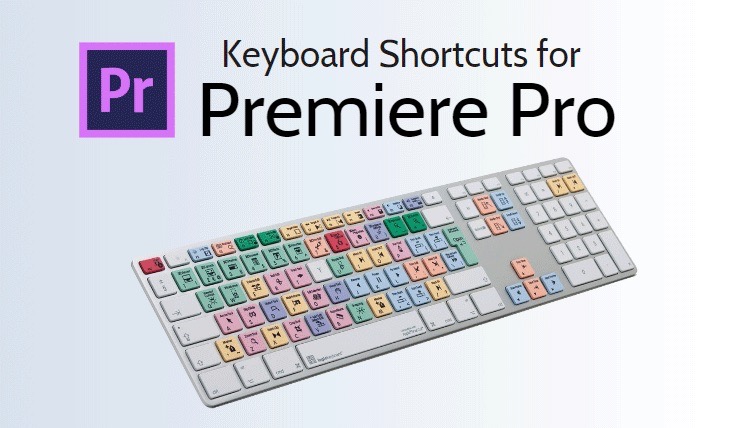
Premiere Pro default keyboard shortcuts
File
| Commands | Windows | macOS |
|---|---|---|
| Project… | Ctrl + Alt + N | Opt + Cmd + N |
| Sequence… | Ctrl + N | Cmd + N |
| Bin | Ctrl + / | Cmd + / |
| Open Project… | Ctrl + O | Cmd + O |
| Close Project | Ctrl + Shift + W | Shift + Cmd + W |
| Close | Ctrl + W | Cmd + W |
| Save | Ctrl + S | Cmd + S |
| Save As… | Ctrl + Shift + S | Shift + Cmd + S |
| Save a Copy… | Ctrl + Alt + S | Opt + Cmd + S |
| Capture… | F5 | F5 |
| Batch Capture… | F6 | F6 |
| Import from Media Browser | Ctrl + Alt + I | Opt + Cmd + I |
| Import… | Ctrl + I | Cmd + I |
| Export Media | Ctrl + M | Cmd + M |
| Get Properties for Selection… | Ctrl + Shift + H | Shift + Cmd + H |
| Exit | Ctrl + Q | Cmd + Q |
Edit
| Commands | Windows | macOS |
|---|---|---|
| Undo | Ctrl + Z | Cmd + Z |
| Redo | Ctrl + Shift + Z | Shift + Cmd + Z |
| Cut | Ctrl + X | Cmd + X |
| Copy | Ctrl + C | Cmd + C |
| Paste | Ctrl + V | Cmd + V |
| Paste Insert | Ctrl + Shift + V | Shift + Cmd + V |
| Paste Attributes | Ctrl + Alt + V | Opt + Cmd + V |
| Clear | Delete | Forward Delete |
| Ripple Delete | Shift + Delete | Shift + Forward Delete |
| Duplicate | Ctrl + Shift + / | Shift + Cmd + / |
| Select All | Ctrl + A | Cmd + A |
| Deselect All | Ctrl + Shift + A | Shift + Cmd + A |
| Find… | Ctrl + F | Cmd + F |
| Edit Original | Ctrl + E | Cmd + E |
| Keyboard Shortcuts | Ctrl + Alt + K | Cmd + Opt + K |
Clip
| Commands | Windows | macOS |
|---|---|---|
| Make Subclip… | Ctrl + U | Cmd + U |
| Audio Channels… | Shift + G | Shift + G |
| Audio Gain | G | G |
| Speed/Duration… | Ctrl + R | Cmd + R |
| Insert | , | , |
| Overwrite | . | . |
| Enable | Shift + E | Shift + Cmd + E |
| Link | Ctrl + L | Cmd + L |
| Group | Ctrl + G | Cmd + G |
| Ungroup | Ctrl + Shift + G | Shift + Cmd + G |
Sequence
| Commands | Windows | macOS |
|---|---|---|
| Render Effects in Work Area | Enter | Enter |
| Match Frame | F | F |
| Reverse Match Frame | Shift + R | Shift + R |
| Add Edit | Ctrl + K | Cmd + K |
| Add Edit to All Tracks | Ctrl + Shift + K | Shift + Cmd + K |
| Trim Edit | Shift + T | Cmd + T |
| Extend Selected Edit to Playhead | E | E |
| Apply Video Transition | Ctrl + D | Cmd + D |
| Apply Audio Transition | Ctrl + Shift + D | Shift + Cmd + D |
| Apply Default Transitions to Selection | Shift + D | Shift + D |
| Lift | ; | ; |
| Extract | ‘ | ‘ |
| Zoom In | = | = |
| Zoom Out | – | – |
| Next in Sequence | Shift + ; | Shift + ; |
| Previous in Sequence | Ctrl + Shift + ; | Opt + ; |
| Snap in Timeline | S | S |
| Make Subsequence | Shift + U | Cmd + U |
| Add new caption track | Ctrl + Alt + A | Opt + Cmd + A |
| Add caption at playhead | Ctrl + Alt + C | Opt + Cmd + C |
| Go to next caption segment | Ctrl + Alt + Down | Opt + Cmd + Down |
| Go to previous caption segment | Ctrl + Alt + Up | Opt + Cmd + Up |
Markers
| Commands | Windows | macOS |
|---|---|---|
| Mark In | I | I |
| Mark Out | O | O |
| Mark Clip | X | X |
| Mark Selection | / | / |
| Go to In | Shift + I | Shift + I |
| Go to Out | Shift + O | Shift + O |
| Clear In | Ctrl + Shift + I | Opt + I |
| Clear Out | Ctrl + Shift + O | Opt + O |
| Clear In and Out | Ctrl + Shift + X | Opt + X |
| Add Marker | M | M |
| Go to Next Marker | Shift + M | Shift + M |
| Go to Previous Marker | Ctrl + Shift + M | Shift + Cmd + M |
| Clear Selected Marker | Ctrl + Alt + M | Opt + M |
| Clear All Markers | Ctrl + Alt + Shift + M | Opt + Cmd + M |
Graphics and Titles
| Commands | Windows | macOS |
|---|---|---|
| New Layer | ||
| Text | Ctrl + T | Cmd + T |
| Rectangle | Ctrl + Alt + R | Opt + Cmd + R |
| Ellipse | Ctrl + Alt + E | Opt + Cmd + E |
| Arrange | ||
| Bring to Front | Ctrl + Shift + ] | Shift + Cmd + ] |
| Bring Forward | Ctrl + ] | Cmd + ] |
| Send Backward | Ctrl + [ | Cmd + [ |
| Send to Back | Ctrl + Shift + [ | Shift + Cmd + [ |
| Select | ||
| Select Next Layer | Ctrl + Alt + ] | Opt + Cmd + ] |
| Select Previous Layer | Ctrl + Alt + [ | Opt + Cmd + [ |
Window
| Commands | Windows | macOS |
|---|---|---|
| Reset to Saved Layout | Alt + Shift + 0 | Opt + Shift + 0 |
| Audio Clip Mixer | Shift + 9 | Shift + 9 |
| Audio Track Mixer | Shift + 6 | Shift + 6 |
| Effect Controls | Shift + 5 | Shift + 5 |
| Effects | Shift + 7 | Shift + 7 |
| Media Browser | Shift + 8 | Shift + 8 |
| Program Monitor | Shift + 4 | Shift + 4 |
| Projects | Shift + 1 | Shift + 1 |
| Source Monitor | Shift + 2 | Shift + 2 |
| Timelines | Shift + 3 | Shift + 3 |
Help
|
Commands |
Windows |
macOS |
|
Premiere Pro Help… |
F1 |
F1 |
Audio Track Mixer Panel
|
Commands |
Windows |
macOS |
|---|---|---|
|
Show/Hide Tracks |
Ctrl + Alt + T |
Opt + Cmd + T |
|
Loop |
Ctrl + L |
Cmd + L |
|
Meter Input(s) Only |
Ctrl + Shift + I |
Ctrl + Shift + I |
Capture panel
| Commands | Windows | macOS |
|---|---|---|
| Record Video | V | V |
| Record Audio | A | A |
| Eject | E | E |
| Fast Forward | F | F |
| Go to In point | Q | Q |
| Go to Out point | W | W |
| Record | G | G |
| Rewind | R | R |
| Step Back | Left | Left |
| Step Forward | Right | Right |
| Stop | S | S |
Effect Controls panel
|
Commands |
Windows |
macOS |
|---|---|---|
|
Remove Selected Effect |
Backspace |
Delete |
|
Loop During Audio-Only Playback |
Ctrl + L |
Cmd + L |
Effects panel
|
Commands |
Windows |
macOS |
|---|---|---|
|
New Custom Bin |
Ctrl + / |
Cmd + / |
|
Delete Custom Item |
Backspace |
Delete |
Essential Graphics panel
| Commands | Windows | macOS |
|---|---|---|
| New text layer | Ctrl + T | Cmd + T |
| Rectangle | Ctrl + Alt + R | Opt + Cmd + R |
| Ellipse | Ctrl + Alt + E | Opt + Cmd + E |
| Bring to Front | Ctrl + Shift + ] | Cmd + Shift + ] |
| Bring Forward | Ctrl + ] | Cmd + ] |
| Send Backward | Ctrl + [ | Cmd + [ |
| Send to Back | Ctrl + Shift + [ | Cmd + Shift + [ |
| Select Next Layer | Ctrl + Alt + ] | Cmd + Opt + ] |
| Select Previous Layer | Ctrl + Alt + [ | Cmd + Opt + [ |
| Clear Selection | Backspace | Delete |
| Increase Leading by One Unit | Alt + Up | Opt + Up |
| Decrease Leading by One Unit | Alt + Down | Opt + Down |
| Increase Leading by Five Units | Alt + Shift + Up | Opt + Shift + Up |
| Decrease Leading by Five Units | Alt + Shift + Down | Opt + Shift + Down |
| Increase Font Size by One Unit | Ctrl + Alt + Right | Opt + Cmd + Right |
| Decrease Font Size by One Unit | Ctrl + Alt + Left | Opt + Cmd + Left |
| Increase Font Size by Five Units | Ctrl + Alt + Shift + Right | Opt + Shift + Cmd + Right |
| Decrease Font Size by Five Units | Ctrl + Alt + Shift + Right | Opt + Shift + Cmd + Left |
History panel
|
Commands |
Windows |
macOS |
|---|---|---|
|
Step Backward |
Left |
Left |
|
Step Forward |
Right |
Right |
|
Delete |
Backspace |
Delete |
Legacy Titler panel
| Commands | Windows | macOS |
|---|---|---|
| Arc Tool | A | A |
| Bold | Ctrl + B | Cmd + B |
| Ellipse Tool | E | E |
| Insert Copyright Symbol | Ctrl + Alt + Shift + C | Opt + Shift + Cmd + C |
| Insert Registered Symbol | Ctrl + Alt + Shift + R | Opt + Shift + Cmd + R |
| Italic | Ctrl + I | Cmd + I |
| Line Tool | L | L |
| Nudge Selected Object Down by Five Pixels | Shift + Down | Shift + Down |
| Nudge Selected Object Down by One Pixel | Down | Down |
| Nudge Selected Object Left by Five Pixels | Shift + Left | Shift + Left |
| Nudge Selected Object Left by One Pixel | Left | Left |
| Nudge Selected Object Right by Five Pixels | Shift + Right | Shift + Right |
| Nudge Selected Object Right by One Pixel | Right | Right |
| Nudge Selected Object Up by Five Pixels | Shift + Up | Shift + Up |
| Nudge Selected Object Up by One Pixel | Up | Up |
| Pen Tool | P | P |
| Position Objects to Bottom Title Safe Margin | Ctrl + Shift + D | Shift + Cmd + D |
| Position Objects to Left Title Safe Margin | Ctrl + Shift + F | Shift + Cmd + F |
| Position Objects to Top Title Safe Margin | Ctrl + Shift + O | Shift + Cmd + O |
| Rectangle Tool | R | R |
| Rotation Tool | O | O |
| Selection Tool | V | V |
| Type Tool | T | T |
| Underline | Ctrl + U | Cmd + U |
| Vertical Type Tool | C | C |
| Wedge Tool | W | W |
Media Browser panel
|
Commands |
Windows |
macOS |
|---|---|---|
|
Open in Source Monitor |
Shift + O |
Shift + O |
|
Select Directory List |
Shift + Left |
Shift + Left |
|
Select Media List |
Shift + Right |
Shift + Right |
Metadata panel
|
Commands |
Windows |
macOS |
|---|---|---|
|
Loop |
Ctrl + L |
Cmd + L |
|
Play |
Space |
Space |
Multi-camera
| Commands | Windows | macOS |
|---|---|---|
| Go to Next Edit Point | Down | Down |
| Go to Next Edit Point on Any Track | Shift + Down | Shift + Down |
| Go to Previous Edit Point | Up | Up |
| Go to Previous Edit Point on Any Track | Shift + Up | Shift + Up |
| Go to Selected Clip End | Shift + End | Shift + End |
| Go to Selected Clip Start | Shift + Home | Shift + Home |
| Go to Sequence-Clip End | End | End |
| Go to Sequence-Clip Start | Home | Home |
| Increase Clip Volume | ] | ] |
| Increase Clip Volume Many | Shift + ] | Shift + ] |
| Maximize or Restore Active Frame | Shift + ` | Shift + ` |
| Maximize or Restore Frame Under Cursor | ` | ` |
| Minimize All Tracks | Shift + – | Shift + – |
| Play Around | Shift + K | Shift + K |
| Play In to Out | Ctrl + Shift + Space | Opt + K |
| Play In to Out with Preroll/Postroll | Shift + Space | Shift + Space |
| Play from Playhead to Out Point | Ctrl + Space | Ctrl + Space |
| Play-Stop Toggle | Space | Space |
| Reveal Nested Sequence | Ctrl + Shift + F | Ctrl + Shift + F |
| Ripple Trim Next Edit To Playhead | W | W |
| Ripple Trim Previous Edit To Playhead | Q | Q |
| Select Camera 1 | 1 | 1 |
| Select Camera 2 | 2 | 2 |
| Select Camera 3 | 3 | 3 |
| Select Camera 4 | 4 | 4 |
| Select Camera 5 | 5 | 5 |
| Select Camera 6 | 6 | 6 |
| Select Camera 7 | 7 | 7 |
| Select Camera 8 | 8 | 8 |
| Select Camera 9 | 9 | 9 |
| Select Find Box | Shift + F | Shift + F |
| Select Clip at Playhead | D | D |
| Select Next Clip | Ctrl + Down | Cmd + Down |
| Select Next Panel | Ctrl + Shift + . | Ctrl + Shift + . |
| Select Previous Clip | Ctrl + Up | Cmd + Up |
| Select Previous Panel | Ctrl + Shift + , | Ctrl + Shift + , |
| Set Poster Frame | Shift + P | Cmd + P |
| Shuttle Left | J | J |
| Shuttle Right | L | L |
| Shuttle Slow Left | Shift + J | Shift + J |
| Shuttle Slow Right | Shift + L | Shift + L |
| Shuttle Stop | K | K |
| Step Back | Left | Left |
| Step Back Five Frames – Units | Shift + Left | Shift + Left |
| Step Forward | Right | Right |
| Step Forward Five Frames – Units | Shift + Right | Shift + Right |
| Toggle All Audio Targets | Ctrl + 9 | Cmd + 9 |
| Toggle All Source Audio | Ctrl + Alt + 9 | Opt + Cmd + 9 |
| Toggle All Source Video | Ctrl + Alt + 0 | Opt + Cmd + 0 |
| Toggle All Video Targets | Ctrl + 0 | Cmd + 0 |
| Toggle Audio During Scrubbing | Shift + S | Shift + S |
| Toggle Control Surface Clip Mixer Mode | ||
| Toggle Full Screen | Ctrl + ` | Ctrl + ` |
| Toggle Multi-Camera View | Shift + 0 | Shift + 0 |
| Toggle Trim Type | Shift + T | Ctrl + T |
| Trim Backward | Ctrl + Left | Opt + Left |
| Trim Backward Many | Ctrl + Shift + Left | Opt + Shift + Left |
| Trim Forward | Ctrl + Right | Opt + Right |
| Trim Forward Many | Ctrl + Shift + Right | Opt + Shift + Right |
| Trim Next Edit to Playhead | Ctrl + Alt + W | Opt + W |
| Trim Previous Edit to Playhead | Ctrl + Alt + Q | Opt + Q |
Program Monitor panel
Note:
To use nudging for graphic layers, make sure that:
- You have at least one layer selected (blue box) in a single graphic
- The Program Monitor or the Essential Graphics panel is in focus
| Commands | Windows | macOS |
|---|---|---|
| Show Rulers | Ctrl + R | Cmd + R |
| Show Guides | Ctrl + ; | Cmd + ; |
| Snap in Program Monitor | Ctrl + Shift + ; | Shift + Cmd + ; |
| Lock Guides | Ctrl + Alt + Shift + R | Opt + Shift + Cmd + R |
| Nudge Selected Object up by five frames | Shift + Ctrl + Up | Shift + Cmd + Up |
| Nudge Selected Object right by five frames | Shift + Ctrl + Right | Shift + Cmd + Right |
| Nudge Selected Object left by five frames | Shift + Ctrl + Left | Shift + Cmd + Left |
| Nudge Selected Object down by five frames | Shift + Ctrl + Down | Shift + Cmd + Down |
| Nudge Selected Object up by one frame | Ctrl + Up | Cmd + Up |
| Nudge Selected Object right by one frame | Ctrl + Right | Cmd + Right |
| Nudge Selected Object left by one frame | Ctrl + Left | Cmd + Left |
| Nudge Selected Object down by one frame | Ctrl + Down | Cmd + Down |
Project panel
| Commands | Windows | macOS |
|---|---|---|
| New Bin | Ctrl + B | Cmd + B |
| Delete | Backspace | Delete |
| List | Ctrl + Page Up | Cmd + Page Up |
| Icon | Ctrl + Page Down | Cmd + Page Down |
| Hover Scrub | Shift + H | Shift + H |
| Delete Selection with Options | Ctrl + Delete | Cmd + Forward Delete |
| Extend Selection Down | Shift + Down | Shift + Down |
| Extend Selection Left | Shift + Left | Shift + Left |
| Extend Selection Right | Shift + Right | Shift + Right |
| Extend Selection Up | Shift + Up | Shift + Up |
| Move Selection Down | Down | Down |
| Move Selection End | End | End |
| Move Selection Home | Home | Home |
| Move Selection Left | Left | Left |
| Move Selection Page Down | Page Down | Page Down |
| Move Selection Page Up | Page Up | Page Up |
| Move Selection Right | Right | Right |
| Move Selection Up | Up | Up |
| Next Column Field | Tab | Tab |
| Next Row Field | Enter | Return |
| Open in Source Monitor | Shift + O | Shift + O |
| Previous Column Field | Shift + Tab | Shift + Tab |
| Previous Row Field | Shift + Enter | Shift + Return |
| Thumbnail Size Next | Shift + ] | Shift + ] |
| Thumbnail Size Previous | Shift + [ | Shift + [ |
| Toggle View | Shift + \ | Shift + \ |
| Zoom In | = | = |
| Zoom Out | – | – |
Timeline panel
| Commands |
Windows | macOS |
|---|---|---|
| Clear Selection | Backspace | Delete |
| Decrease Audio Tracks Height | Alt + – | Opt + – |
| Decrease Video Tracks Height | Ctrl + – | Cmd + – |
| Increase Audio Tracks Height | Alt + = | Opt + = |
| Increase Video Tracks Height | Ctrl + = | Cmd + = |
| Nudge Clip Selection Left Five Frames | Alt + Shift + Left | Shift + Cmd + Left |
| Nudge Clip Selection Left One Frame | Alt + Left | Cmd + Left |
| Nudge Clip Selection Right Five Frames | Alt + Shift + Right | Shift + Cmd + Right |
| Nudge Clip Selection Right One Frame | Alt + Right | Cmd + Right |
| Ripple Delete | Alt + Backspace | Opt + Delete |
| Set Work Area Bar In Point | Alt + [ | Opt + [ |
| Set Work Area Bar Out Point | Alt + ] | Opt + ] |
| Show Next Screen | Page Down | Page Down |
| Show Previous Screen | Page Up | Page Up |
| Slide Clip Selection Left Five Frames | Alt + Shift + , | Opt + Shift + , |
| Slide Clip Selection Left One Frame | Alt + , | Opt + , |
| Slide Clip Selection Right Five Frames | Alt + Shift + . | Opt + Shift + . |
| Slide Clip Selection Right One Frame | Alt + . | Opt + . |
| Slip Clip Selection Left Five Frames | Ctrl + Alt + Shift + Left | Opt + Shift + Cmd + Left |
| Slip Clip Selection Left One Frame | Ctrl + Alt + Left | Opt + Cmd + Left |
| Slip Clip Selection Right Five Frames | Ctrl + Alt + Shift + Right | Opt + Shift + Cmd + Right |
| Slip Clip Selection Right One Frame | Ctrl + Alt + Right | Opt + Cmd + Right |